Last updated: September 29, 2026
The globe isn’t moving. Maybe it stopped halfway through a cycle and sits there upside down. Maybe it hasn’t rotated once since your cat used it. Or maybe it worked yesterday and today — nothing.
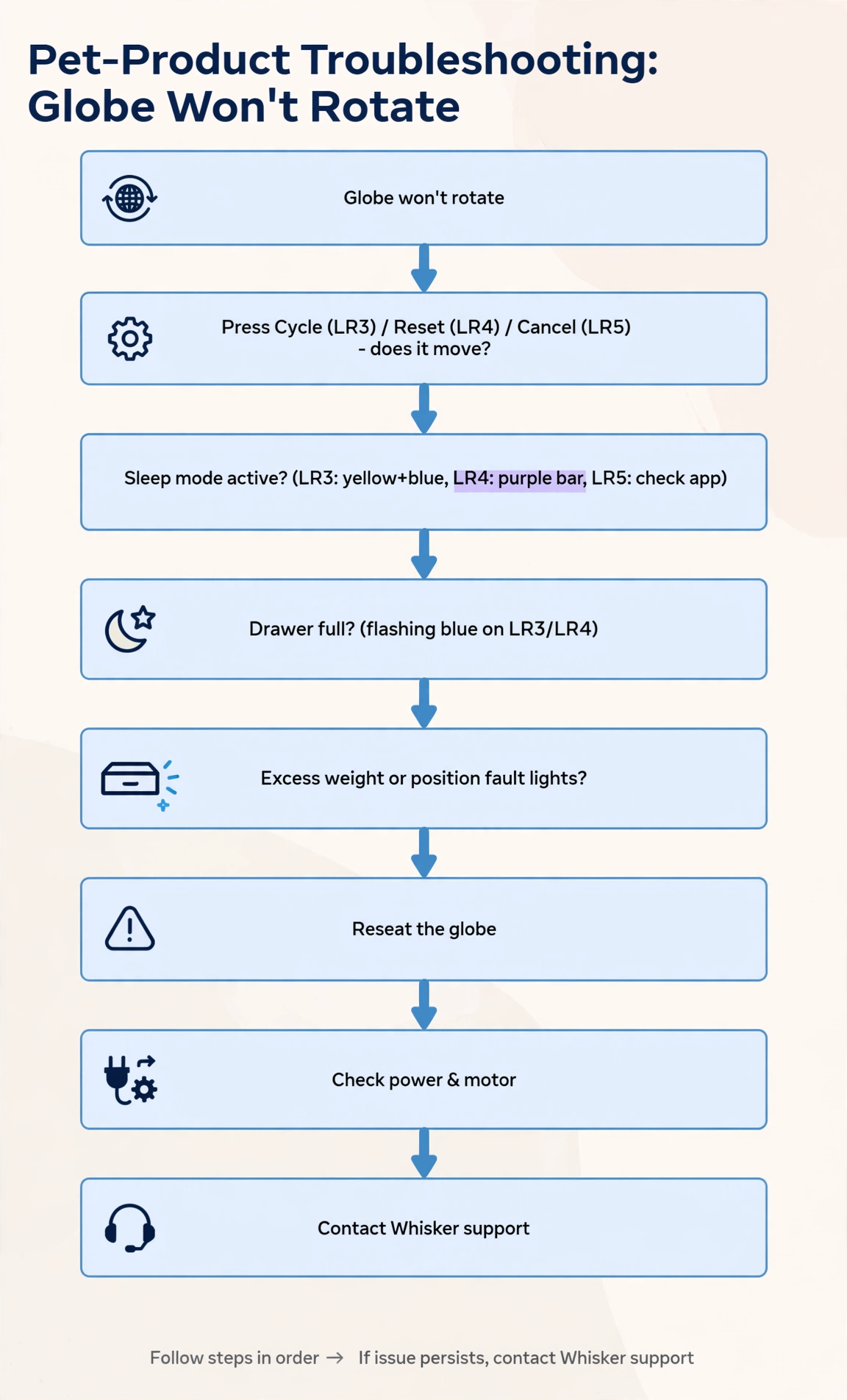
This is the symptom-first guide: your Litter-Robot won’t rotate, and you want it rotating again. Work through your model’s section below in order — the steps go from the simplest explanations (a countdown still running, a mode you didn’t know was on) to mechanical causes.
Two things to know before you start. First, identify your model: the Litter-Robot 3 has a round control panel with four buttons (Power, Cycle, Empty, Reset) and individual LEDs; the Litter-Robot 4 has a single multi-color light bar; the Litter-Robot 5 has a single LED indicator plus an LCD screen. Fixes for the wrong model will waste your time. Second, if a light is actively flashing or blinking, the fastest path is usually the light-code guide for that color — this guide covers the “globe won’t rotate” symptom itself, and links out to the light guides where they take over.
The short answer
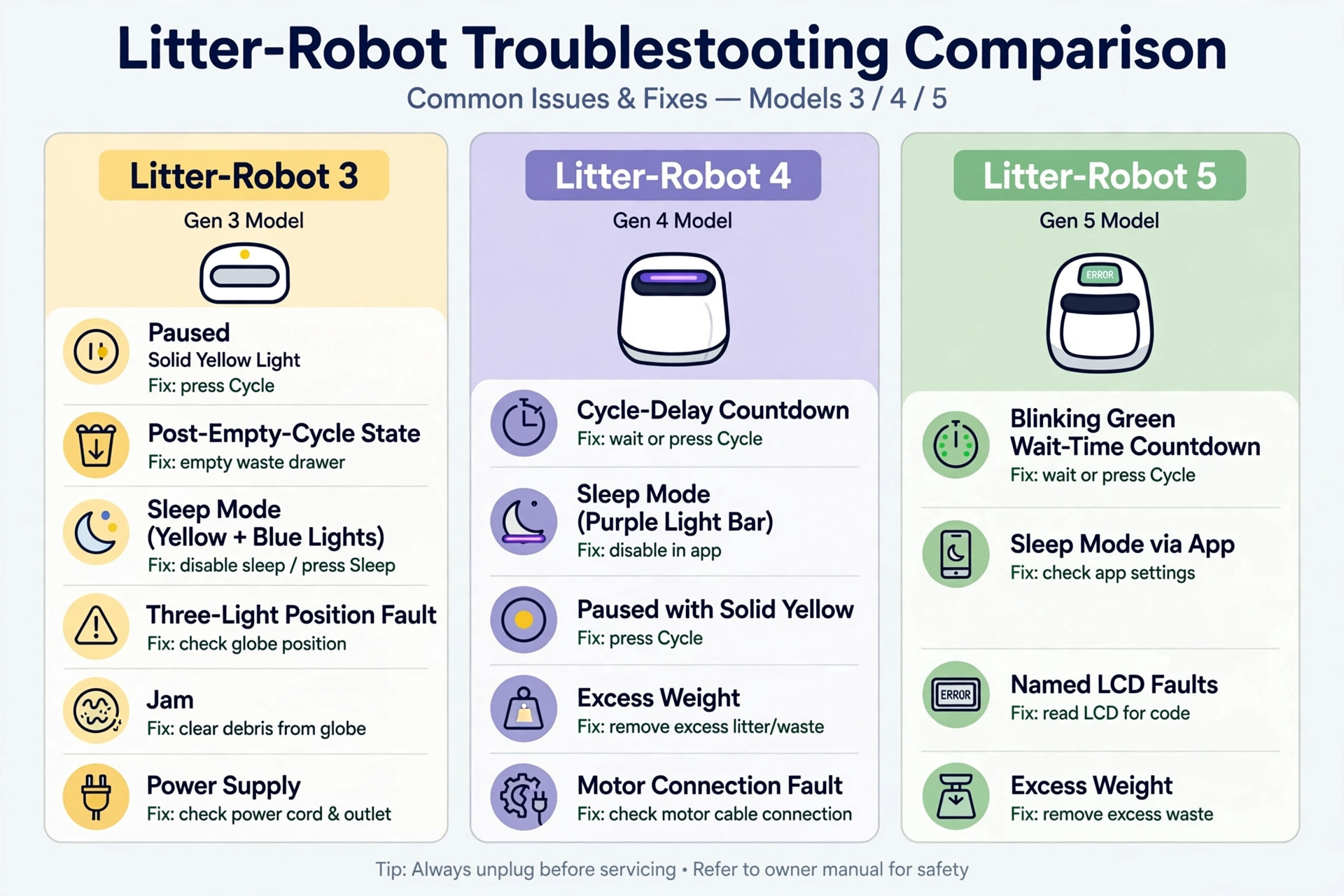
| Model | What you see | What it points to (per Whisker) | First step |
|---|---|---|---|
| Litter-Robot 3 | Solid yellow light, globe still | Unit is paused — or it just finished an Empty cycle and is waiting for you | Press Cycle (press any button after an Empty cycle) |
| Litter-Robot 3 | Solid yellow + solid blue lights together | 8-hour sleep mode is active | Press and hold Cycle until the yellow light turns off |
| Litter-Robot 3 | All three lights flashing | Globe position fault — the unit can’t find the home and/or dump position | Reseat the globe; all three flashing at once means it needs repair |
| Litter-Robot 3 | Yellow & red, or blue & red, flashing sequentially | Motor detected an obstruction or jam | Power off, remove the bonnet and globe, clear the obstruction |
| Litter-Robot 4 | Solid yellow light bar | Unit is paused mid-cycle | Press Cycle or Reset |
| Litter-Robot 4 | Purple light bar | Sleep mode is active | 3-second long press of Cycle to disable |
| Litter-Robot 4 | Blue bar with 2 flashing yellow | Excess weight — the scale has been triggered for over 30 minutes | Remove excess litter, then press Reset twice from Home |
| Litter-Robot 4 | Blue and white alternating | Motor connection issue affecting globe rotation | Check the motor connection (Whisker’s Motor Installation Guide) |
| Litter-Robot 5 | Blinking green LED | Wait-time countdown running after the cat exited | Wait it out, or short-press Cancel |
| Litter-Robot 5 | Any message on the LCD screen | Named fault (motor, position, drawer, scale) | Fix the specific message — see the LR5 section |
| Any model | Flashing blue (LR3/LR4) | Waste drawer full — on the LR4, the third detection stops automatic cycling | Empty the drawer, press Reset |
Litter-Robot 3
The LR3’s most misunderstood “won’t cycle” state is the one that looks like a malfunction but isn’t: after an Empty cycle, the globe deliberately stops with the yellow light on and waits for you. Work through these in order.
Step 1: Press Cycle — rule out “paused” and the post-Empty-cycle state
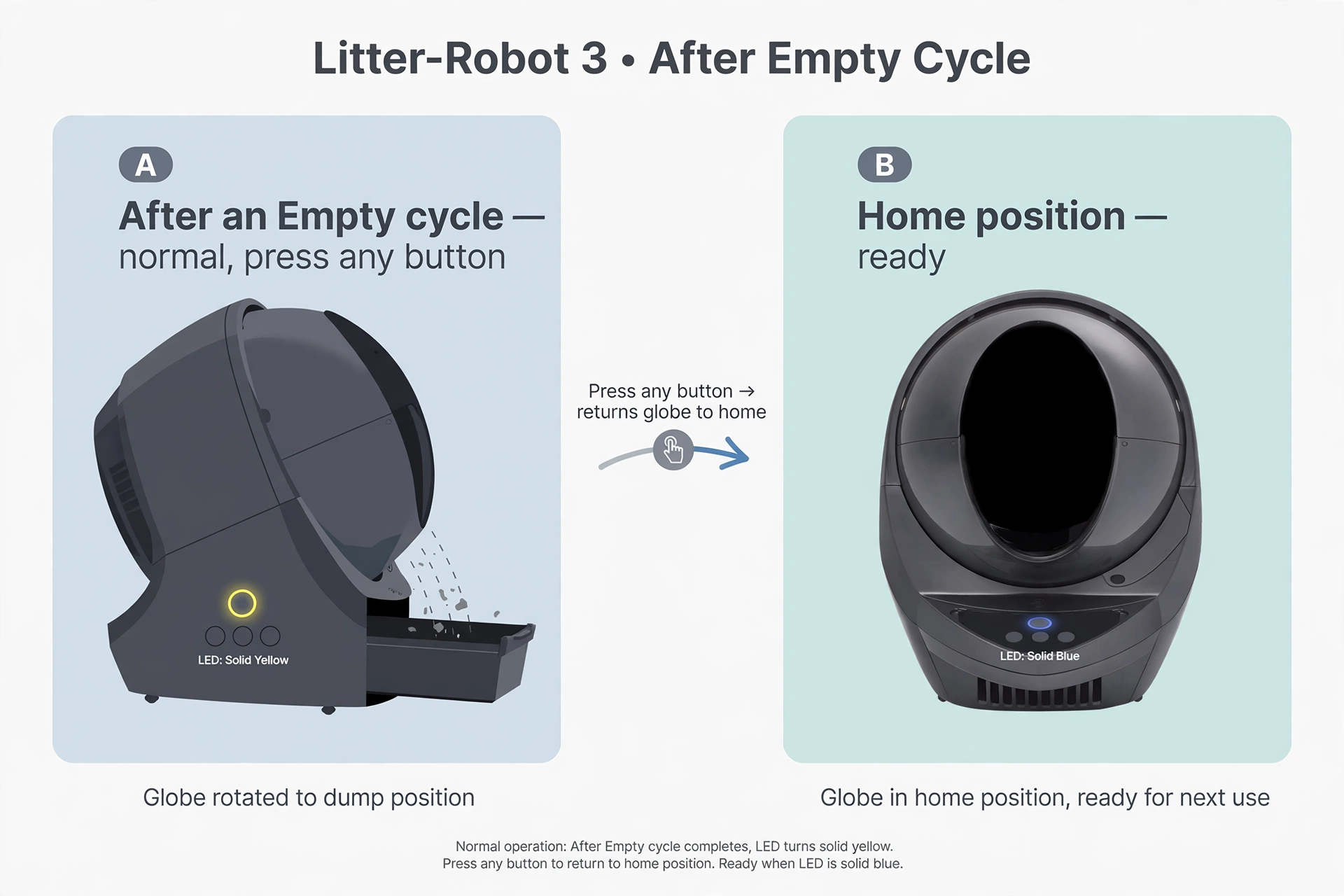
Per Whisker’s official LR3 guide: if the unit shows a solid yellow light with no globe movement, first press the Cycle button to make sure the unit isn’t paused.
Then check whether you (or someone in the household) recently ran an Empty cycle — the cycle that dumps all litter from the globe into the waste drawer. After the litter is emptied, the globe stops with the yellow light on and awaits your action. Press any button to return the globe to the Home position. The globe sitting at the dump position with a solid yellow light after an Empty cycle is normal behavior, not a fault.
Practical note: if you use the Whisker app, press Reset Gauge in the Controls section after emptying the waste drawer, so the app’s drawer level matches reality.
Step 2: Check for sleep mode (solid yellow + solid blue)
If the yellow light is solid and the blue light is also on, the unit is in 8-hour sleep mode — the cat sensor is deactivated for 8 hours, so the unit will not cycle automatically. The 8-hour period repeats every 24 hours, starting from the time the mode was first set, and the unit runs a Clean cycle when the period expires.
To exit: press and hold the Cycle button until the yellow light turns off.
Practical note: sleep mode is easy to enable by accident (a long press of Cycle), so check this before disassembling anything — especially if the unit stopped cycling overnight.
Step 3: Check whether the drawer is full (flashing blue)
A flashing blue light means the waste drawer is full. Empty it and reset the unit — see Litter-Robot Flashing Blue Light: What It Means and How to Fix It.
Step 4: Look for the three-light globe position fault
The LR3 has three status LEDs (blue, yellow, red). If all three are flashing in one of three combinations, the unit has a globe position fault, per Whisker:
- Blue, then yellow, then red (flashing sequentially): the unit cannot find the dump position. It keeps functioning in automatic mode but needs repair.
- Red, then yellow, then blue (flashing sequentially): the unit cannot find the home position. It keeps functioning in automatic mode but needs repair.
- All three flashing simultaneously: the unit cannot find the dump or home position. The unit will not cycle automatically and needs repair.
Before concluding it’s a repair case, reseat the globe: press Power to turn the unit off, remove the bonnet (press the latches on both sides, lift while rotating backward), check visually that the large gear running around the globe sits in the track on the base, and at the back of the globe, turn the black key into the key pocket. Reinstall the bonnet and try to cycle again. Whisker’s position-fault guide also covers the power supply checks (see Step 7) and the globe magnets as deeper repair steps — if the simultaneous three-light flash persists, contact Whisker support rather than opening the base.
Step 5: Check for a motor jam
Per Whisker’s LR3 button-and-light reference: yellow and red flashing sequentially means the motor detected an obstruction or jam during clockwise rotation; blue and red flashing sequentially means the same for counter-clockwise rotation. The fix: turn the unit off and unplug it, remove the bonnet and globe, clear any obstruction from the gear and motor area, reassemble, and power back on.
Step 6: Inspect the globe seating and the motor gear
If the light is a plain solid yellow and Steps 1–5 don’t apply, check the mechanical side using Whisker’s sequence:
- Press Power to turn the unit off and remove the bonnet.
- Confirm the globe is positioned correctly: the large gear around the globe should sit in the track on the base, and the black key at the back of the globe should be turned into the key pocket.
- Reinstall the bonnet, power on, and press Cycle.
Still solid yellow? Whisker’s deeper check isolates whether the motor or its gear is the problem: with the globe removed and the bonnet reinstalled, press Cycle. If you hear the motor running but the gear isn’t turning, the set screw holding the gear to the motor shaft is loose and needs tightening (Whisker has a dedicated “fixing a loose gear” guide for this). If the gear can’t be wiggled by hand and you hear no motor running at all, the motor itself needs replacing.
Practical note: the gear and motor checks involve reaching into the base with the globe removed — follow Whisker’s guide step by step, and keep the unit unplugged while your hands are inside.
Step 7: Check the power supply
Whisker’s LR3 power checks, in order:
- Visually inspect the power supply cord for damage (deformities, punctures).
- Confirm the outlet works by testing it with another device.
- Check the power supply label — it should read 15V DC 1000mA (1A).
- Plug the unit directly into a wall outlet — Whisker advises against extension cords and power strips.
- Press Power and let the unit run its startup cycle.
Per Whisker, power fluctuations in the home (outages, brownouts) can damage the supply to the point where a replacement power supply — or a replacement base — is needed.
Litter-Robot 4
The LR4 usually tells you why it won’t cycle via the light bar — but several of its “not cycling” states are settings, not faults. Check them in this order before assuming something is broken.
Step 1: Let the cycle delay finish — or cancel it
The default cycle delay is 7 minutes after the sensors detect the cat exiting the globe. If the unit simply hasn’t started yet, that countdown may still be running. Short-press Reset to cancel the wait-time countdown. (You can change the delay to anything between 3 and 30 minutes in the Whisker app.)
Practical note: every time the cat re-enters the globe, the countdown restarts — in a multi-cat home, the unit can legitimately go a long time without cycling.
Step 2: Check sleep mode (purple light bar)
A purple light bar means sleep mode is active: the unit monitors for cats but will not run a Clean cycle during the sleep period. The unit ships with a default 8-hour sleep period that repeats every 24 hours (the start time is whenever sleep mode was enabled), and the Whisker app offers weekday/weekend schedule programming. If the unit detected usage during the sleep period, it runs a Clean cycle once the period ends.
To disable it: 3-second long press of the Cycle button — the bar should change from purple to blue.
Step 3: Solid yellow bar — the unit is paused
A solid yellow light bar means the unit has been paused. Press Cycle or Reset to resume; if that doesn’t work, power the unit off and back on with the Power button. (This is distinct from a flashing yellow bar, which signals a removed bonnet — see Litter-Robot Flashing Yellow Light: What It Means and How to Fix It (LR3 vs LR4 vs LR5).)
Step 4: Flashing blue bar — the drawer stopped the show
On the LR4, a flashing blue light bar means the waste drawer is full — and there’s a detail that matters here: the first two times the drawer-full sensor trips, the unit keeps cycling; on the third detection, the cat sensors deactivate and the unit stops cycling automatically until you empty the drawer and reset it. So a unit that won’t cycle with a flashing blue bar has simply reached that third stage. Empty the drawer, press Reset, then press Cycle — full details in Litter-Robot Flashing Blue Light: What It Means and How to Fix It.
Step 5: Blue bar with 2 flashing yellow — excess weight
This pattern means the scale has been triggered for more than 30 minutes — the unit thinks a cat (or too much weight) is inside. Whisker’s fix sequence:
- Remove excess litter if it’s above the fill line.
- Check placement: not on carpet or a litter mat, no power cord under the unit, not sitting in a grout line, and not touching any walls.
- From the Home position, press the Reset button twice to zero the weight scale (you can also press Reset in the app’s Controls).
- If the unit is stuck mid-cycle, long-press the Reset button for 3 seconds to zero the weight scale.
Step 6: Clean the curtain sensors (red and blue alternating)
Dust and fur on the three laser (curtain) sensors in the bezel cause false cat detections — the unit thinks a cat is present and won’t cycle. If the bar alternates red and blue, those sensors need cleaning: wipe the bezel sensor area with a dry, clean cloth, and vacuum the inside perimeter of the bezel with a brush attachment, passing over the holes at the top. (Whisker’s guidance for sensor faults also includes updating the firmware via the app.) The full pattern reference is in Litter-Robot Flashing Red Light: What It Means and How to Fix It (LR3 vs LR4 vs LR5).
Step 7: Rule out a jam or motor fault
Two patterns stop the globe mechanically:
- Red bar with 2 flashing yellow: the motor detected an obstruction or jam and stopped. Turn the unit off, remove the bonnet and globe, check for gear/motor obstruction, reassemble, verify the litter level, and power on. If the globe is stuck mid-cycle, you can open the bonnet and manually rotate the globe back toward the Home position first. Full walkthrough: the flashing-red guide.
- Blue and white alternating: there’s an issue with the motor connection affecting globe rotation. Whisker points to its Motor Installation Guide to make sure the motor is securely connected — if the pattern persists after that, contact support.
Step 8: Fix the placement
Incorrect placement causes scale and sensor misreads that silently prevent cycling: put the unit on a firm, level surface (Whisker sells a Carpet Tray to improve SmartScale accuracy on carpet), keep the litter mat completely in front of the unit rather than partially underneath, keep all sides clear of walls, and check that all four feet move freely with no litter or debris stuck around them — and that none of the feet rest on a cord or in a grout line.
Practical note: after moving the unit, adding litter, or emptying the drawer, press Reset from the Home position to re-zero the scale — Whisker’s guides call for this after any weight change.
Litter-Robot 5 (and EVO)
The LR5’s LCD screen names its faults, which makes “won’t cycle” diagnosis mostly a matter of reading the screen — plus two states that confuse owners because they look like faults but aren’t.
Step 1: Blinking green — the countdown is running, not a fault
If the status LED is blinking green, the cat sensor was triggered (a cat entered the globe) and the unit will cycle once the cycle-delay countdown is up — or immediately if you short-press Cancel. This is the single most misread LR5 state: owners see a blinking light and assume an error, but it’s just the wait timer. The default delay is 7 minutes; you can set 3, 7, 15, 25, or 30 minutes in the Whisker app (device card → settings gear → Cycle Delay).
Step 2: Check sleep mode in the app
During the sleep period, the unit monitors for cat usage but will not perform a Clean cycle — so a unit that never rotates overnight may be doing exactly what it was told. The Whisker app offers customizable sleep-mode programming; open it and check whether a sleep schedule is active before troubleshooting further.
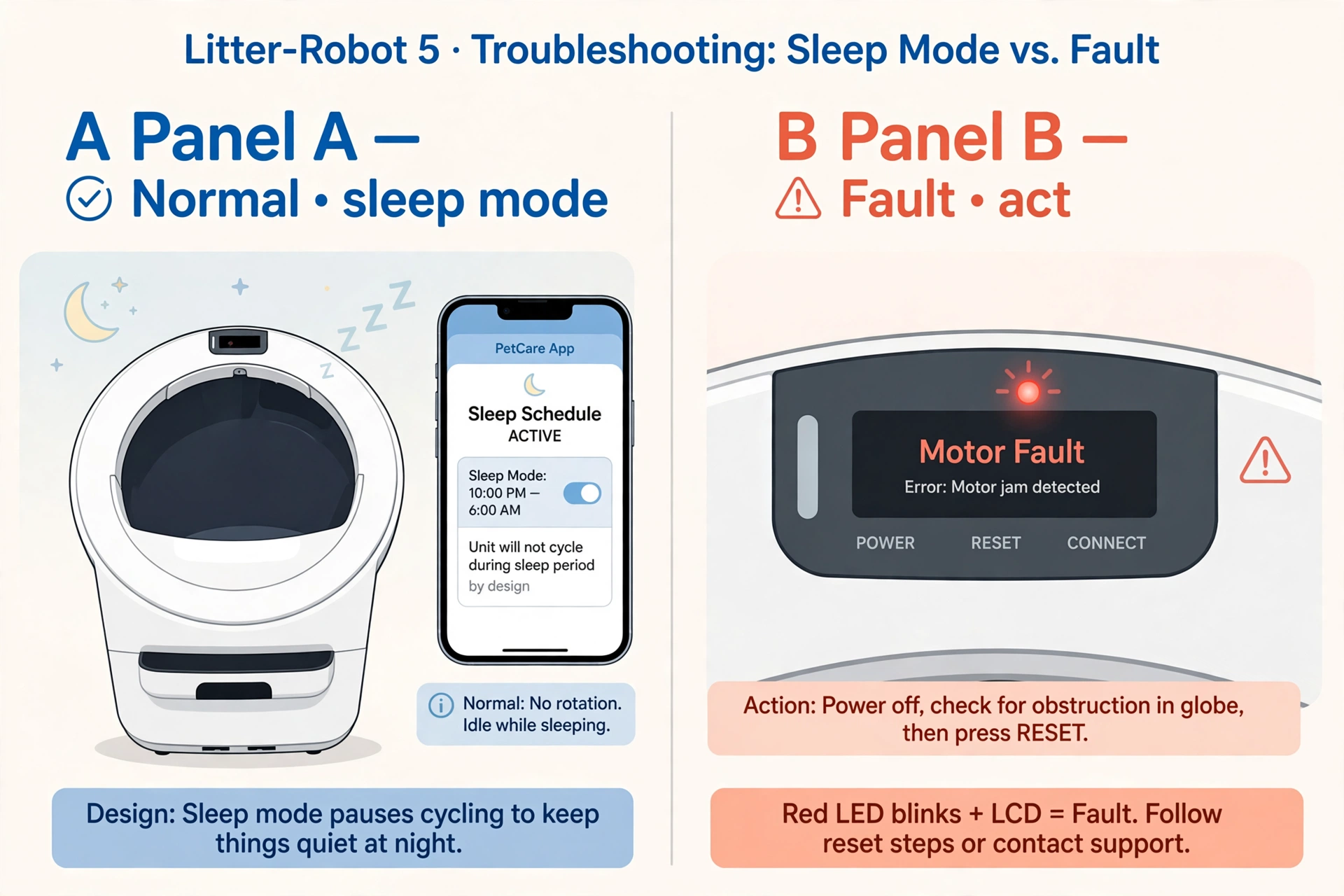
Step 3: Read the LCD — then fix the named fault
A blinking red LED on the LR5 means “product fault,” and the LCD screen states which one. The faults Whisker documents that stop or prevent cycling include Motor Fault (motor met resistance — remove excess litter, check for blockages, restart), Position Fault (the robot can’t find or hold the globe position — remove and reseat the globe so the black gear engages the drive gear, power back on, then press Cancel followed by Cycle for a test cycle), Bonnet Removed, Drawer Full / Drawer Removed / Drawer Obstructed, and Extended Scale Activity (continuous weight over 30 minutes). The full fault-by-fault walkthrough is in Litter-Robot Flashing Red Light: What It Means and How to Fix It (LR3 vs LR4 vs LR5). If the named fault is a hopper error — Hopper Disconnected or Not Dispensing — see our Litter-Robot 5 LitterHopper troubleshooting guide.
Step 4: Excess weight — litter level, scale, and the waste port
If the LCD shows Extended Scale Activity or an Overloaded Globe notification, the scale is reading extra weight — possibly from a recent move or too much litter. Whisker’s sequence:
- Remove excess litter above the fill line.
- Check placement: not on a litter mat, no power cord underneath, not in a grout line, not touching walls.
- From the Home position, short-press Cancel to zero the weight scale (also the fix if the unit is stuck mid-cycle).
- Check that the carbon filter is properly seated.
- Inspect the waste port: no seal strips peeling, nothing obstructing the opening.
Step 5: Power, firmware, and the motor connection
For a Motor Fault message that won’t clear, Whisker’s checklist is: make sure the device is plugged in and connected, confirm the firmware is up to date in the Whisker app, and ensure the motor is securely connected. On power generally: use the original Whisker power adapter, seat it firmly at both the unit and the wall, and try another outlet. Success looks like a solid white light; a fault message that survives these checks means contacting support.
Step 6: Placement
The LR5 has a built-in carpet tray, but Whisker still recommends a level surface and avoiding uneven flooring for accurate weight readings: litter mat completely in front of the unit (not partially underneath), no sides touching walls, all four feet moving freely and clear of litter or debris, and no feet resting on a cord or in a grout line.
When to contact Whisker support
Stop DIY troubleshooting and contact Whisker Customer Experience (1-877-250-7729, or submit a ticket) when:
- LR3: all three lights flash simultaneously — per Whisker, the unit will not cycle automatically and needs repair. Also if a solid yellow persists after the globe, motor-gear, and power-supply checks — Whisker’s own path from there is a replacement motor assembly, power supply, or base.
- LR4: red and green alternating (factory scale calibration lost — the base needs replacing); blue and white alternating that survives the motor-connection check; a red-with-yellow jam code that returns immediately after clearing the obstruction (Whisker’s endpoint is a replacement motor assembly).
- LR5 / EVO: a Motor Fault that survives the plug/firmware/motor-connection checks; a Position Fault that returns after reseating the globe; a Board Fault that survives the 6-second power-button hard reset.
- Any model: you suspect the power supply was damaged by an outage or brownout, or the unit is under warranty — WhiskerCare covers replacement parts at no cost through your Whisker account, so there’s no reason to buy parts or open the base yourself first.
FAQ
My LR3 ran an Empty cycle and now just sits there with a yellow light. Is it broken?
No — that’s the designed end state of the Empty cycle. The globe stops with the yellow light on and awaits your action; press any button to return the globe to the Home position, and the blue ready light should come back.
My LR5 blinks green for a long time but never cycles. Is something wrong?
Blinking green means the wait-time countdown is running after a cat visit — it’s normal, not an error. Wait for the countdown to finish, or short-press Cancel to cycle immediately. If the countdown feels too long, the delay is adjustable (3, 7, 15, 25, or 30 minutes) in the Whisker app under Cycle Delay.
The globe stopped upside down mid-cycle. Can I just push it back by hand?
Don’t force it while it’s powered. On the LR4, long-press Reset for 3 seconds to zero the weight scale; the LR4 manual also allows opening the bonnet (with the unit off) and manually rotating the globe back toward the Home position before working through the jam checks. On the LR5, short-press Cancel to zero the scale when stuck mid-cycle. If the globe keeps stopping mid-cycle, treat it as a jam or excess-weight issue in your model’s section above.
Why won’t it cycle even though the light is solid blue and everything looks normal?
The unit may never have registered the visit. Whisker’s LR4 guide notes the unit might not detect usage because of a scale issue — or because the cat is under the 3 lb minimum weight the sensors need. Placement matters too: carpet, mats under the unit, or a foot resting on a cord can all throw off the weight reading. Also confirm no sleep schedule is active and that the cycle-delay countdown hasn’t simply been restarted by the cat going back in.
Can a power strip or a weak outlet stop the globe?
It can cause exactly this symptom on the LR3: Whisker instructs owners to plug the unit directly into a wall outlet (no extension cords or power strips), verify the supply is labeled 15V DC 1000mA, and test the outlet with another device. On the LR5, a “power fault” message calls for the original Whisker adapter seated firmly at both ends, and trying another outlet.
How is this guide different from your flashing-light guides?
This guide starts from the symptom — the globe won’t rotate — and walks each model from settings to mechanical causes. The yellow, red, and blue guides start from the light pattern and decode exactly what each blink means. Use whichever matches what you’re seeing; they link to each other where the paths cross.
Related guides
- Litter-Robot Flashing Yellow Light: What It Means and How to Fix It (LR3 vs LR4 vs LR5) — the companion guide for interrupted cycles, paused states, and the LR5’s attention alerts.
- Litter-Robot Flashing Red Light: What It Means and How to Fix It (LR3 vs LR4 vs LR5) — the companion guide for cat-sensor faults, jams, and the LR5’s named product faults.
- Litter-Robot Flashing Blue Light: What It Means and How to Fix It — the companion guide for drawer-full states, including the LR4’s three-stage escalation that stops cycling.
- Automatic Feeder Dispenses Manually but Not on Schedule? 8 Causes & Fixes — a different device, but the same shape of problem: it works when you trigger it, just not on its own schedule.
Sources
All facts in this guide come from Whisker’s official documentation. Each link below was verified live during research.
- Litter-Robot 3: Troubleshooting No Globe Movement — Whisker Support: solid-yellow checks (press Cycle first), post-Empty-cycle state, globe reseating (gear in track, black key into key pocket), motor-gear set-screw test, power supply checks (15V DC 1000mA, direct to wall).
- Litter-Robot 3: 8-Hour Sleep Mode — Whisker Support: entering/exiting sleep mode (press-and-hold Cycle), solid yellow + solid blue indicator, 8-hour period repeated every 24 hours, Clean cycle on expiry.
- Litter-Robot 3: LED Lights Flashing (Globe Position Fault) — Whisker Support: the three flashing combinations (dump position, home position, both), repair guidance.
- Litter-Robot 3: Programming Button Functions — Whisker Support: light-code reference including motor jam sequences (yellow/red, blue/red) and sleep-mode indicator.
- Litter-Robot 4: Why Is My Litter-Robot Not Cycling? — Whisker Support: full LR4 cause list, 7-minute cycle delay, sleep mode (purple bar, 8-hour default, 3-second Cycle press), excess-weight reset sequence, placement checks, curtain-sensor cleaning, motor-connection fault (blue/white alternating), 3 lb minimum cat weight.
- Litter-Robot 4: Solid Yellow (Paused) — Whisker Support: paused-state fix (Cycle/Reset, then power cycle).
- Litter-Robot 5: Not Cycling Troubleshooting Guide — Whisker Support: LR5 cause list, blinking-green countdown meaning, sleep mode, excess-weight steps (carbon filter, waste-port seal strips), placement, motor-fault checklist (power, firmware, motor connection), solid-white success state.
- Litter-Robot 4: Purple Light (Sleep Mode) Overview — Whisker Support: sleep-mode behavior, enabling/disabling, app schedule options.
Manufacturer documentation is the primary source for this guide. Any practical sequencing or emphasis beyond Whisker’s stated steps is editorial judgment, not manufacturer instruction.
Editorial responsibility: Mohammed Algaari — Founder & Editor