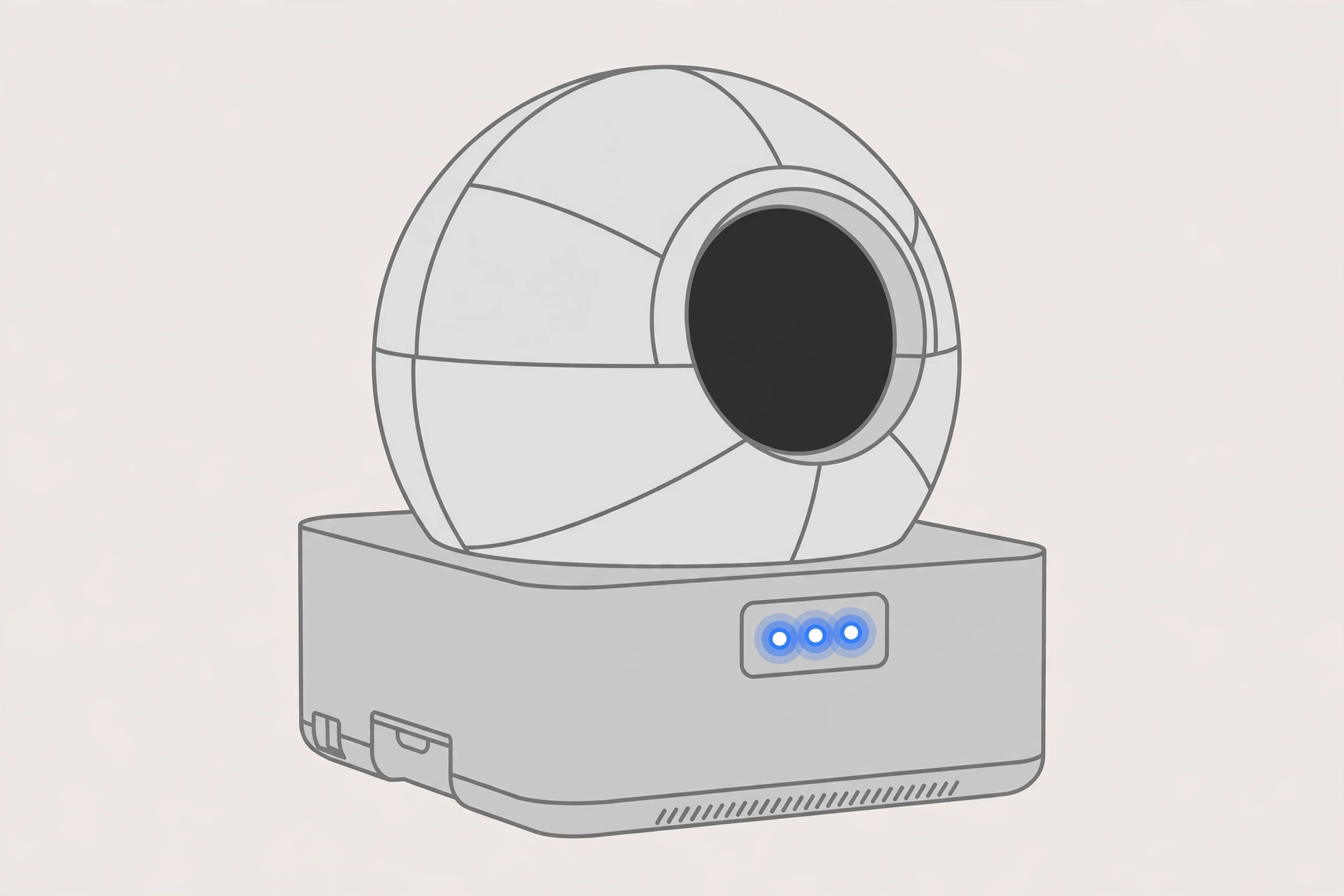
The short answer: A flashing blue light on a Litter-Robot means the waste drawer is full — or the unit thinks it’s full. On the Litter-Robot 3 and 4, this is the normal drawer-full indicator, not an error. Empty the drawer, make sure the liner is installed correctly, press Reset, and the light should return to solid blue. If it keeps flashing with an empty drawer, the usual culprits are a poorly installed liner or dirty drawer-full sensors. (Own a Litter-Robot 5 or EVO? Your drawer-full indicator flashes yellow, not blue — see the note near the end.)
What flashing blue means by model
| Model | Meaning | How the sensor works |
|---|---|---|
| Litter-Robot 3 | Waste drawer full | DFI (Drawer Full Indicator) infrared sensors above the drawer |
| Litter-Robot 4 | Waste drawer full | Downward-facing distance sensor; escalates over 3 detections |
| Litter-Robot 5 / EVO | Not the drawer-full code — that flashes yellow on these models | Check the Whisker app for the specific alert |
Litter-Robot 4: the three-stage escalation
Worth knowing: on the LR4, the first and second times the drawer-full sensor trips, the light bar flashes blue but the unit keeps cycling. On the third detection, the cat sensors deactivate and the unit stops cycling automatically until you empty the drawer and reset it. So a flashing blue light bar on a unit that still cycles is an early warning; one that won’t cycle means you’ve reached the third stage.
How to fix it: Litter-Robot 3
Follow Whisker’s official troubleshooting sequence:
- Open the waste drawer and empty it.
- If you use the Whisker app, press Reset Gauge in the Controls section to reset the waste drawer level.
- Replace the liner. Tuck it into all four tabs and keep it below the top edge of the drawer — if the bag sticks up over the edge, it interferes with the DFI sensors located just above the drawer.
- Reinstall the waste drawer.
- From the Home position, press Reset to zero the weight sensors.
- Press Cycle. Once the clean cycle completes, the unit should return to a solid blue “ready” light.
How to fix it: Litter-Robot 4
- Empty the waste drawer.
- Press Reset, then press Cycle.
- Per the LR4 manual: after emptying, press Reset once to cancel the indicator, and press Reset again to zero the weight scale. (The scale also re-zeroes itself after each clean cycle.)
Don’t confuse it with the WiFi light
On the LR4, there’s a small LED next to the Connect button: blinking blue there means WiFi is disconnected or reconnecting — not a full drawer. Solid blue means connected, white means WiFi is off, and blinking yellow means the unit is in onboarding mode waiting to pair with the app. The drawer-full signal is the full light bar flashing blue.
Still flashing blue with an empty drawer?
If the drawer is empty and correctly lined but the blue light keeps flashing, the sensor is getting a false reading. Work through these in order:
1. Check the liner installation. This is the most common cause of false drawer-full readings. The bag must be tucked into all four tabs and sit below the drawer’s top edge — any material poking up into the sensor zone above the drawer will trip the indicator. Whisker also notes that dark-colored bags can cause inaccurate waste-level readings, especially when the drawer is empty; white bags work best.
2. Clean the DFI sensors. Dust, litter dust, and cat fur on the sensor lenses can block the beam and fake a full drawer. Whisker’s procedure:
- Press the Power button to turn the unit off.
- Unplug the unit from the wall (this also performs a hard reset).
- Remove the bonnet: press the latches on both sides, then lift while rotating it backwards — two plastic tabs on the back of the bonnet slide up and out of the base. Set the bonnet aside.
- Remove the globe and set it aside.
- Remove the waste drawer and set it aside.
- Wipe the DFI sensor lenses clean, then reassemble in reverse order.
3. Hard reset. With the unit powered on and the blue light flashing, unplug the power supply from the base, wait about 10 seconds, plug it back in, and let the unit complete its startup cycle. If the light is solid blue afterward, the code is cleared.
A note for Litter-Robot 5 / EVO owners
Whisker’s documentation states the drawer-full indicator flashes blue on the Litter-Robot 3 and 4, but yellow on the Litter-Robot 5 and EVO. So if your LR5 is flashing blue, that’s not the standard drawer-full signal — check the Whisker app for the specific notification. If it’s flashing yellow, that’s your drawer-full indicator: see our flashing-yellow-light guide.
When to contact Whisker support
If you’ve emptied the drawer, installed a white liner correctly, cleaned the sensors, and performed a hard reset — and the blue light still flashes — the DFI sensor itself may have failed. Contact Whisker’s customer experience team ([email protected]) rather than opening the base yourself.
Related guides
- Litter-Robot Flashing Yellow Light: What It Means and How to Fix It (LR3 vs LR4 vs LR5) — the companion guide to this one; on the LR3/LR4, yellow means an interrupted cycle, while on the LR5 it also signals a full drawer.
Sources
- Whisker — Litter-Robot 3: Blue Light Flashing (Drawer Full): https://www.litter-robot.com/support/article/litter-robot-3-blue-light-flashing-drawer-full/
- Whisker — Litter-Robot 4: What Do the Lights Mean: https://www.litter-robot.com/support/article/litter-robot-4-light-codes-guide/
- Whisker — Litter-Robot 4: Sensors and Functions: https://www.litter-robot.com/support/article/litter-robot-4-sensors-and-functions/
- Whisker — Waste Drawer Liner Installation Guide: https://www.litter-robot.com/uk/support/article/litter-robot-waste-drawer-liner-installation-guide/
- Whisker — Get Started with Litter-Robot 4: https://www.litter-robot.com/getting-started/litter-robot-4
- Whisker — Litter-Robot 4 Instruction Manual (via Manuals.Plus): https://manuals.plus/whisker/litter-robot-4-self-cleaning-litter-box-manual
- Whisker — Litter-Robot 3 Connect User Guide (via Manuals.Plus): https://manuals.plus/litter-robot/3-connect-automatic-self-cleaning-litter-box-manual
- Litter-Robot — Litter-Robot 4: Flashing Blue Light, Waste Drawer Full (video): https://www.youtube.com/watch?v=mjLkiGRUx1Q