The short answer
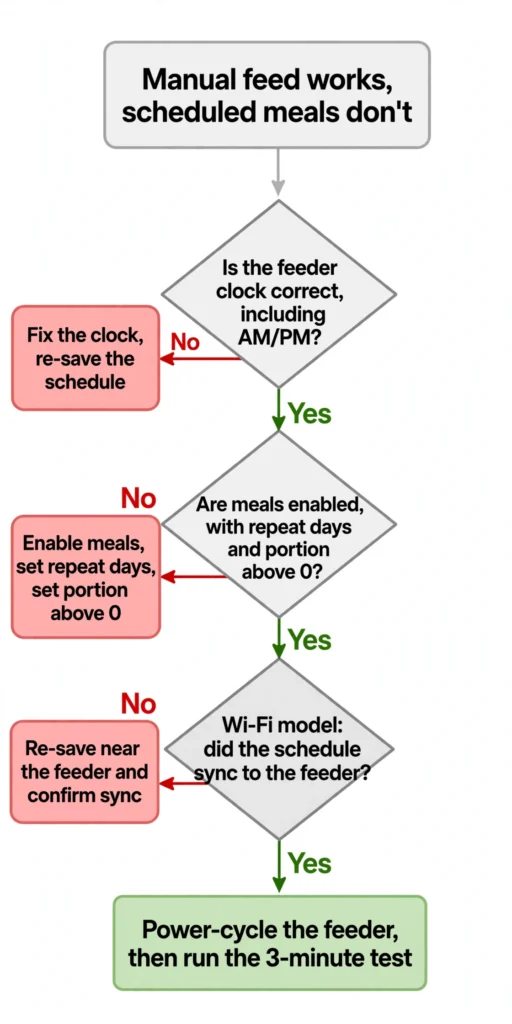
If your automatic feeder dispenses food when you press the manual feed button but never fires its scheduled meals, the dispensing hardware is very likely healthy — a successful manual feed is strong evidence the motor, power supply, and food path work. It doesn’t rule out intermittent faults, but it points the diagnosis squarely at the scheduling layer: the feeder’s internal clock, how the meals were programmed, or the connection between the app and the feeder.
Check these first, in order:
- The feeder’s clock — is it showing the correct current time? Start here: it’s the quickest check, and clock errors are a common culprit.
- AM/PM or 24-hour mixup — many feeders run on 24-hour “military” time.
- Meals programmed but not enabled — some feeders need each meal toggled ON, with repeat days selected.
- Schedule never synced — on Wi-Fi models, a schedule saved in the app doesn’t count until the feeder confirms it.
Fixes below are ordered by diagnostic priority — the quickest, highest-yield checks first, following the order manufacturer support guides typically use. No tools or parts needed — about 10–20 minutes.
Why this symptom narrows it down (read this first)
This specific symptom — manual works, scheduled doesn’t — is actually good diagnostic news. A successful manual feed is strong evidence that:
- ✅ The motor turns
- ✅ Power is reaching the feeder
- ✅ The food path is clear (no jam)
- ✅ The kibble size works with the mechanism
That’s evidence, not a guarantee — an intermittent jam or flaky connection can still hide behind one good manual feed. But it means the generic “feeder not dispensing at all” checklists about jams, power adapters, and empty hoppers are very unlikely to help here. What’s left is everything involved in timing: the clock the feeder thinks it is, the schedule it thinks it has, and (on smart models) whether the schedule ever reached the device. Every fix below targets exactly that layer.
Safety note: All fixes here are button presses, menu settings, and power cycling. If you ever open the feeder to inspect the mechanism, unplug it first and keep fingers away from the food wheel/rotor.
Quick diagnosis table
| What you notice | Most likely cause | Jump to |
|---|---|---|
| Feeder’s displayed time is wrong | Clock never set / reset after outage / drift | Cause 1 |
| Meals fire 12 hours early or late | AM/PM or 24-hour confusion | Cause 2 |
| Schedule looks right in the app | Meals not enabled, or no repeat days set | Cause 3 |
| Schedule looks right in the app, feeder shows nothing | App schedule never synced to feeder | Cause 4 |
| Feeder shows offline in the app | Wi-Fi/cloud problem | Cause 5 |
| PetSafe model, colon flashing on display | “Suspend Feeding” mode is on | Cause 6 |
| Everything looks right but nothing fires | Stuck firmware state | Cause 7 |
| One specific meal never dispenses | Its portion is set to 0 | Cause 8 |
Cause 1: The feeder’s clock is wrong
Start with the clock. Scheduled meals fire according to the feeder’s internal clock — not your phone’s clock, not real time. If the feeder thinks it’s 3:00 AM when it’s really 3:00 PM, your 6:00 PM dinner will “fire” at what the feeder believes is 6:00 PM — twelve hours off from reality.
The clock goes wrong in four familiar ways:
- It was never set. Many feeders require you to set the clock before programming meals — the schedule depends on it. petrust’s PP004 manual states it plainly: “The automatic feeding depends on the correct clock settings in the pet feeder. Please set the clock before setting up feeding plan.”
- A power outage reset it. On models without battery backup (or with dead backup batteries), even a brief power blink wipes the clock. PetSafe owners report exactly this: “if the power blinks or goes out, then the clock has to be reset” — while owners with fresh backup batteries find their settings survive outages.
- It drifted. Feeder clocks are cheap quartz clocks, and they drift. PetSafe Simply Feed owners report the clock “slowly gets out of time, so every few months you have to fix it.” Community testing on PETLIBRO feeders found a unit running 9 minutes slow, with the feeder only asking the network for the correct time about once a day.
- Daylight saving time. The feeder doesn’t know the clocks changed. Owners routinely find meals suddenly firing an hour early or late after a DST change.
How to check: Look at the feeder’s display (or the device-time readout in the app) and compare it to the actual current time, including AM/PM.
The fix: Reset the clock to the correct current time, then re-save your feeding schedule. After any power outage or DST change, make this your first check — it takes 30 seconds and rules out the simplest explanation first.
Cause 2: AM/PM or 24-hour confusion
Many automatic feeders — WOPET models prominently among them — run on a 24-hour “military” time system. WOPET’s official troubleshooting for “doesn’t dispense food at the programmed time” leads with exactly this note. If you programmed “7:00” thinking AM while the feeder read it as 19:00 (7 PM), the meal fires twelve hours from when you expected — which looks identical to “scheduled feeding doesn’t work.”
Other feeders (like the PetSafe 5-Meal) use 12-hour time but require you to explicitly set AM or PM for both the clock and each feeding time. Miss the PM indicator and breakfast becomes dinner.
How to check: Open the meal programming and look at how times are displayed. If you see 13:00–23:00 values, you’re in 24-hour mode — convert your intended times (7 PM = 19:00). If you see an AM/PM indicator, verify each meal’s setting.
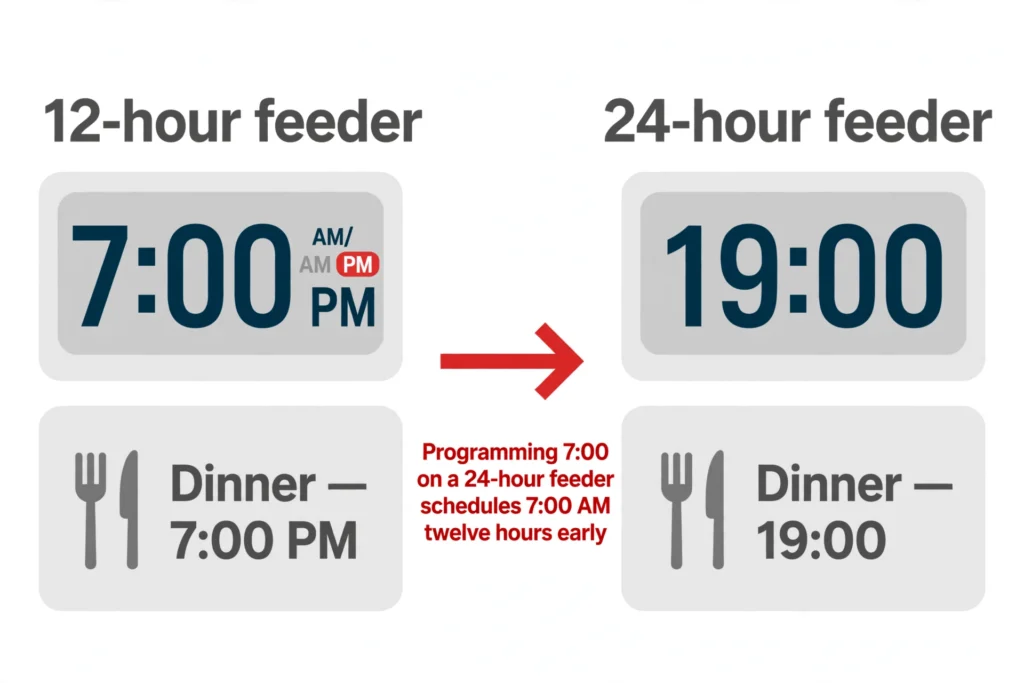
The fix: Re-enter each meal time in the correct format and re-save.
Cause 3: Meals are programmed but not enabled (or not repeating)
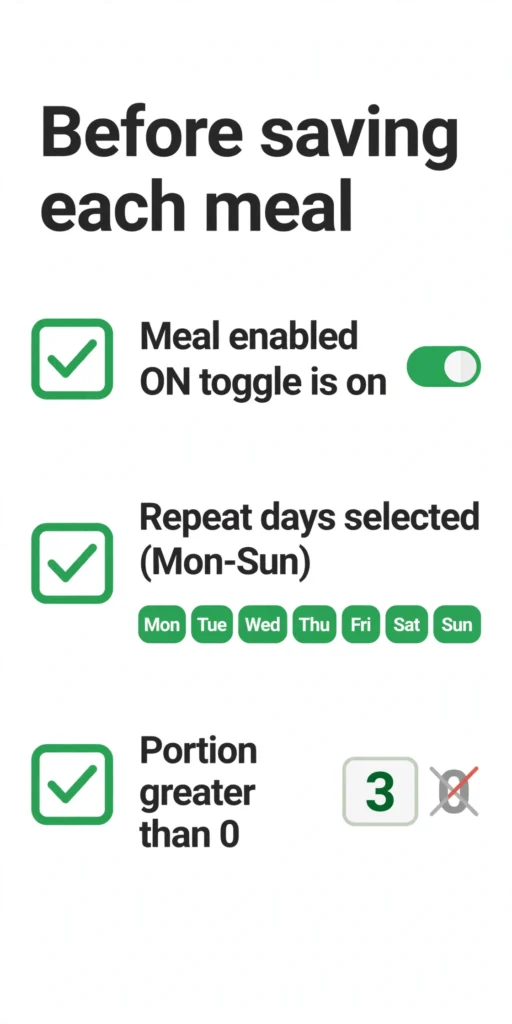
On several feeders, entering a meal time isn’t enough — each meal has to be switched ON, and set to repeat on the days you want. WOPET’s official guidance says it directly: “Check if the meals are set correctly and are ON.”
Two specific traps here:
- The ON toggle. On app-controlled feeders, each scheduled meal typically has an enable switch — and WOPET’s official troubleshooting specifically advises checking that meals are “set correctly and are ON.” You can have four perfectly entered meal times that do nothing because their enable switches are off. Scroll through every meal slot and confirm each one is enabled.
- Repeat days. Some feeders let a schedule run “once” by default. If the Monday-to-Sunday repeat boxes aren’t checked, the feeder may fire the schedule a single time and then never again. Check that repeat/daily is selected for every meal.
A related trap: a meal with its portion set to 0 is effectively cancelled. PETLIBRO’s official setup guide for the Easy Feed states that to cancel/delete a feeding plan you adjust the portion to 0, and WOPET’s FT50 manual gives the same instruction — so a meal you “deleted” by zeroing portions, or one that somehow got zeroed, will silently never fire. If one specific meal never dispenses while others do, check its portion count first.
The fix: Go through every meal slot: time correct → enabled/ON → repeat days set → portion greater than zero. Then save.
Cause 4: The schedule is in the app but never reached the feeder
On Wi-Fi and Bluetooth feeders, the schedule you see in the app and the schedule the feeder is actually running are two different things until a successful sync. If the app saved your plan but the feeder never received it — weak Wi-Fi, an interrupted pairing, the phone on a different network during setup — the feeder keeps running its old schedule (or none at all), while everything looks perfect on your screen.
WOPET’s official troubleshooting for missed schedules includes checking Wi-Fi signal strength and resetting the router, then re-doing the feeding schedule — which only makes sense if the schedule has to travel from app to device.
How to check:
- In the app, look for a sync/confirmation indicator, a “device online” status, or a feeding log showing past scheduled meals. An empty feeding log despite a full schedule is a red flag.
- Make the feeder prove it: change one meal time by a minute, save, and watch for the feeder to acknowledge (beep, display flash, or status update).
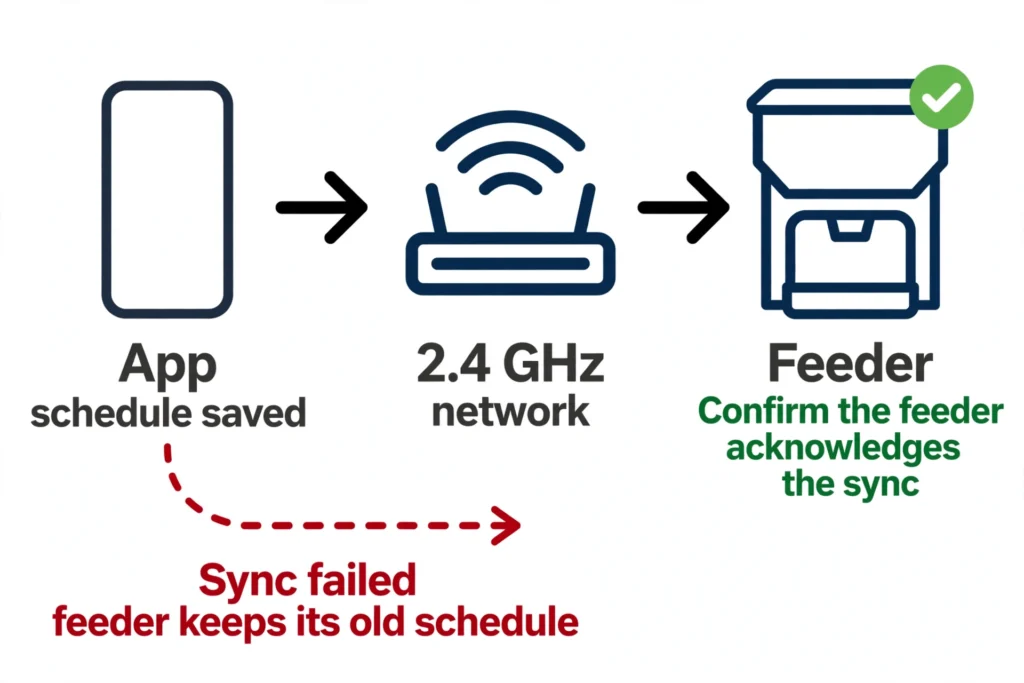
The fix: Re-save the full schedule while standing near the feeder with a strong Wi-Fi signal, confirm the feeder acknowledges it, then run the 3-minute test below.
Cause 5: The feeder is offline (Wi-Fi/cloud-dependent scheduling)
Some smart feeders lean on the cloud more than their marketing suggests. In August 2025, a widely reported PETLIBRO service outage left owners’ scheduled feedings not firing — even though the company says feeding schedules are stored on the feeder itself and should keep running during internet outages. Owners of Granary, RFID, and Polar models reported devices staying offline and missing scheduled meals for days after the company declared service restored.
The lesson isn’t about one brand’s bad week — it’s structural: if your feeder shows offline in the app, don’t assume schedules are running. Verify.
How to check: Open the app and confirm the feeder shows online. If it’s offline, check your 2.4 GHz Wi-Fi (most feeders don’t use 5 GHz), restart the router, and re-pair if needed.
The fix: Get the feeder back online, re-confirm the schedule synced (Cause 4), and consider: for the meals that absolutely must not be missed, a feeder with true on-device scheduling plus battery backup is the resilient combination.
Cause 6: “Suspend Feeding” / vacation mode is on (PetSafe)
This one is almost poetic in how perfectly it matches the symptom: PetSafe’s programmable feeders have a Suspend Feeding feature that pauses all scheduled meals while leaving manual feeding fully working. Hold the Suspend button for about 7 seconds and a suspend icon appears on the display, with the colon between hours and minutes flashing once per second — easy to trigger accidentally while cleaning or button-mashing through menus, and easy to miss afterward.
How to check: Look at the display for a suspend icon or a colon flashing once per second.
The fix: Press the Clock button (or the model’s resume sequence) to clear suspend mode — the icon disappears and scheduled feeding resumes. Check your model’s manual for the exact button, since it varies.
Cause 7: Stuck firmware state — power-cycle the feeder
Sometimes everything is correct — clock right, meals enabled, feeder online — and scheduled meals still silently don’t fire. Community testing on PETLIBRO feeders found that “if scheduled feeds have silently stopped firing on your feeder, a physical power cycle of the feeder has resolved this,” with the root cause appearing to be a stuck device-side state rather than anything wrong in the app.
The fix: Unplug the feeder, remove backup batteries if it has them, wait a full 60 seconds, restore power, verify the clock (see Cause 1 — a full power cycle may reset it), and re-confirm the schedule. Then run the 3-minute test below. If this becomes a recurring need, that’s a firmware-reliability signal worth raising with the manufacturer.
Cause 8: Portion set to 0 for that meal
Covered under Cause 3, but worth isolating because it’s so sneaky: both PETLIBRO (Easy Feed) and WOPET (FT50) document portion 0 as the official way to cancel a feeding plan. A meal with zero portions doesn’t error — it just never dispenses. If every meal works except one, this is your prime suspect.
The 3-minute schedule test (proves the fix)
Don’t wait until tomorrow’s breakfast to find out whether your fix worked. PETLIBRO’s own support uses this exact diagnostic:
- Set the feeder’s clock to the current time (verify AM/PM or 24-hour format).
- Program a test meal 3 minutes in the future (e.g., if it’s 9:00 AM, schedule 3 portions at 9:03 AM).
- Watch. If food dispenses at the scheduled minute, the scheduling layer is healthy — your original problem was programming, not hardware.
- Delete the test meal and re-enter your real schedule.
If the test meal doesn’t fire, work back through Causes 1–7 — and note exactly what happens (or doesn’t) for support.
Brand quick-reference
| Brand | First things to check |
|---|---|
| PETLIBRO (Granary, Air, Easy Feed) | Clock accuracy (drift is documented); app sync status; offline/cloud status. Use the 3-minute test from their official troubleshooting. |
| WOPET | 24-hour military time; every meal toggled ON; portion > 0; Wi-Fi signal strength. |
| PetSafe (programmable models) | AM/PM on clock and each meal; Suspend Feeding icon; clock reset after any power blink. |
Common mistakes to avoid
- Programming meals before setting the clock. The schedule is meaningless without a correct clock — always clock first, meals second.
- Trusting the app screen. “It’s in the app” ≠ “it’s in the feeder.” Always confirm sync.
- Assuming 12-hour time. When in doubt, check whether your feeder speaks 24-hour.
- Forgetting DST and power outages. Both silently invalidate a previously working schedule.
- Changing five things at once. Fix one cause, run the 3-minute test, then move on — otherwise you’ll never know what actually worked.
Prevention
- Use battery backup (and replace the batteries yearly). It preserves the clock and settings through power blinks — a frequent and easily prevented cause of missed schedules.
- Glance at the feeder’s clock monthly. Clock drift is gradual; a 10-second monthly check catches it.
- Re-verify after every power outage and DST change before assuming the schedule survived.
- After any app or firmware update, confirm the schedule is still present and synced.
When to contact the manufacturer
You’ve worked through all 8 causes, the 3-minute test still fails, and manual feeding still works. At this point you’re likely looking at a firmware bug or a failing control board — not a settings problem. Before you call:
- Note your exact model number and firmware/app version.
- Write down what the 3-minute test did (nothing? beeped but no food?).
- Record a video of the failed scheduled feed — PETLIBRO’s support explicitly asks for one, and every manufacturer’s support moves faster with evidence.
FAQ
Why does manual feeding work but scheduled feeding doesn’t?
Because they’re different systems. Manual feeding drives the motor directly; scheduled feeding depends on the feeder’s clock, its programmed meals, and (on smart models) the app-to-device sync. A working manual feed strongly suggests the motor, power, and food path are fine — so the fault is most likely in the timing layer, which is exactly what this guide targets.
Does my feeder need Wi-Fi for scheduled meals to work?
It depends on the model. Many feeders store schedules on-device and should fire without internet — but real-world outages have shown some models missing schedules while offline. If your feeder shows offline in the app, treat the schedule as unverified until you’ve confirmed it.
Will my schedule survive a power outage?
The programmed meals usually survive (especially with battery backup installed), but the clock often doesn’t — and a wrong clock breaks the schedule just as thoroughly as a deleted one. Always re-check the clock after any outage.
It worked fine for months, then stopped after daylight saving time. Why?
The feeder doesn’t observe DST. After the change, its clock is an hour off from real time, so meals fire an hour early or late. Reset the clock twice a year and the problem disappears.
I set the schedule in the app — why didn’t the feeder get it?
The app and the feeder sync over your network, and that sync can fail silently — weak Wi-Fi, interrupted pairing, or the phone being on a different network. Re-save the schedule near the feeder, watch for the feeder’s acknowledgment, and verify with the 3-minute test.
Related guides
- Automatic feeder error-light decoder (cross-brand reference) — coming soon
- Feeder motor runs but no food comes out: jam vs. auger vs. gear diagnosis — coming soon
- Feeder dispensing the wrong amount: the kitchen-scale calibration method — coming soon
Sources
- Manufacturer documentation is the primary source; community observations and news reports are labeled as such.
- PETLIBRO — Troubleshooting: food not dispensing as scheduled (Easy Feed): https://petlibro.com/pages/troubleshooting-the-issue-of-food-not-dispensing-as-scheduled-on-easy-feed-automatic-feeder-plaf003-af003-plaf004-af004
- PETLIBRO — Official setup guide: Easy Feed Automatic Feeder (AF004/PLAF004): https://designlibro.zendesk.com/hc/en-us/articles/14625980476953-How-do-I-set-up-the-Easy-Feed-Automatic-Pet-Feeder-AF004-PLAF004
- PETLIBRO — Troubleshooting: Air feeder dispensing less/no food: https://ca.petlibro.com/pages/what-could-i-do-if-the-air-automatic-feeder-dispenses-less-food-or-doesnt-dispense-food-af008-plaf008
- WOPET — F07 official quick guide FAQ (“device does not dispense food as scheduled”): https://wopet.com/uploads/admin/file/20240729/20240729171833_94440.pdf
- WOPET — FT50 user guide (24-hour clock; set current time first; portion 0 cancels a meal): https://manuals.plus/wopet/ft50-automatic-cat-feeders-manual.pdf
- WOPET — F01 PLUS guide (24-hour clock; portion 0 cancels a schedule; Mon–Sun repeat; manual feed test): https://manuals.plus/m/e6dff743e7de4966d6fb8f60d6884589e082ee3e8a6467080a1a8f0de294bf52.pdf
- PetSafe 5-Meal Pet Feeder manual (AM/PM setting; Suspend Feeding): https://i00.eu/file/543/9011-manual-en-p58132.pdf
- PetSafe feeder reset guide (Suspend Feeding; clock setting): https://uploads.strikinglycdn.com/files/40b5ff73-18ed-49cb-a044-da9b4a3513dc/petsafe_automatic_feeder_reset.pdf
- petrust PP004 manual (clock must be set before feeding plan): https://manuals.plus/petrust/pp004-v1-0-automatic-pet-feeder-manual.pdf
- petlibro-local changelog (community: power cycle resolves silently-stopped schedules; clock drift): https://github.com/smcneece/petlibro-local/blob/HEAD/CHANGELOG.md
- TechSpot — PETLIBRO outage: scheduled feedings missed (news report, August 2025 incident): https://www.techspot.com/community/topics/a-smart-feeder-outage-left-some-cats-and-dogs-without-scheduled-meals.298472/
- Dexerto — PETLIBRO August 2025 outage report (news report, August 2025 incident): https://www.dexerto.com/entertainment/smart-pet-feeder-outage-makes-pets-miss-their-regular-food-3399611/